
Import HubSpot Contact–Company Associations Using Record IDs
Link existing HubSpot contacts and companies with a checked import file, verify relationship pairs and repair mistakes without duplicating records.
Published October 23, 2026
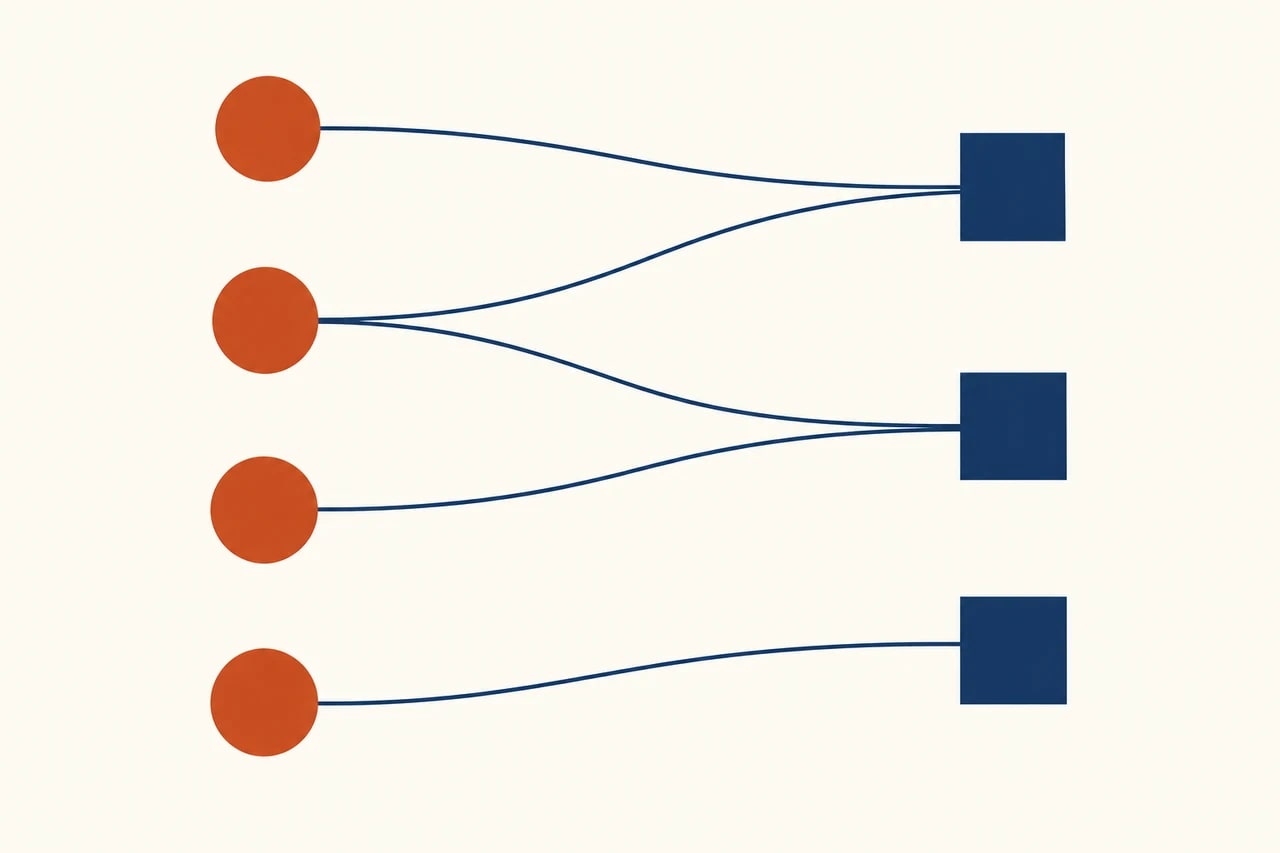
To link existing HubSpot contacts to existing companies, build a file containing the correct Record ID for each side of every relationship. Import both objects, map each ID to its own object and verify the resulting contact–company pairs. Keep uncertain matches outside the file. A completed import does not prove that every person is attached to the right company.
An association is a relationship between records. It is different from changing a contact's company-name text or creating a new company. This distinction matters when a consultant works with two businesses, several contacts belong to one account, or subsidiaries share a domain. Count the relationships you intend to create as well as the distinct records involved.
This guide is for a sales operations owner repairing a defined set of account relationships. It uses a constructed example and the HubSpot documentation checked October 23, 2026. Skip the bulk import for a couple of straightforward corrections if manual review is easier. If either side of the relationship still needs to be created, prepare and approve that separate creation task before using the existing-record procedure below.
Start with the relationship the business actually needs
Ask the account owner what the association should mean. A contact's employer, a company they advise and a company they buy for are different relationships. A plain association may support navigation, but it may not express the role needed for reporting or routing. Do not assume the first company linked to a person should become the primary company for every business process.
List the workflows that consume the relationship. A routing rule, a company report or a customer-success view may respond differently when a contact has multiple companies. Check those dependencies with their owners before a bulk change. The import file should solve the intended relationship problem without silently changing the meaning of a downstream report.
HubSpot's multiple-object import guide lists Import and object Edit permissions as prerequisites. It says importing association labels requires a Professional or Enterprise subscription. Confirm the current account's capabilities before designing a file around labels. An ordinary link and a labeled relationship are separate requirements; neither should be improvised during upload.
The practical cost is preparation, verification and any plan capability the exact job needs. This guide does not prescribe buying a higher tier. If a required label is unavailable, ask the process owner whether the ordinary association meets the purpose or whether the project should wait. Do not replace a meaningful relationship label with unrelated text in a property just to make the import proceed.
Export identifiers from the account you will update
Export the relevant contacts and companies with their Record IDs. Include enough reference information for a reviewer to identify them, such as contact name and company name, in a separate working sheet. Keep the actual upload minimal once the pairs are approved. Record which HubSpot account produced the export; an ID from another account is not a reliable identifier in this one.
HubSpot's file-format guidance recommends distinct column headings when importing IDs for multiple objects, such as Record ID - Contacts and Record ID - Companies. It also describes using one row for each relationship when a record links to more than one other record. Use those headings so the mapper and reviewer can see which side each value belongs to.
Preserve the identifiers as text through spreadsheet handling. Do not let a spreadsheet round long values or reinterpret them as dates. Check a sample against the original export after saving the file. For this existing-record job, reject blank IDs and IDs that do not resolve to the intended record. A missing identifier is a review issue, not permission to create a replacement contact or company.
Keep a before-change record of the relevant associations, including primary-company and label details where your process uses them. A list of contact properties alone may not capture those relationships. Verify that your export or other authorized record of the current state contains what you would need to repair a mistake. If it does not, document the affected records manually for the pilot before increasing the batch size.
Build a file of approved pairs
Give the working sheet one row per intended Contact ID and Company ID pair. Add reviewer-only columns for the business reason, evidence reference, approval and any required relationship label. Keep those columns out of the upload unless they have an intentional, supported destination. The fact that a column exists in a spreadsheet does not mean it belongs in the customer relationship management system.
Check duplicate pairs separately from repeated contacts. A repeated contact ID can be correct if that person needs two company associations. The same contact–company pair repeated twice usually adds no useful instruction and can confuse your reconciliation. Remove redundant pair rows after preserving the original working file and the reason for the change.
Do not match by company name alone when there are similarly named businesses. Use the existing company ID after a reviewer confirms the intended entity. A shared domain can also represent several company records in a particular business model. The point of exporting IDs is to remove that ambiguity from the final upload, not merely to replace a familiar name with a number nobody checked.
For an uncertain relationship, keep an exception row outside the upload with a question and owner. A clean import file is not proof that the source list was complete. Publish the exception count alongside the planned batch so the account owner knows which people remain unresolved.
Reproduce a four-contact example
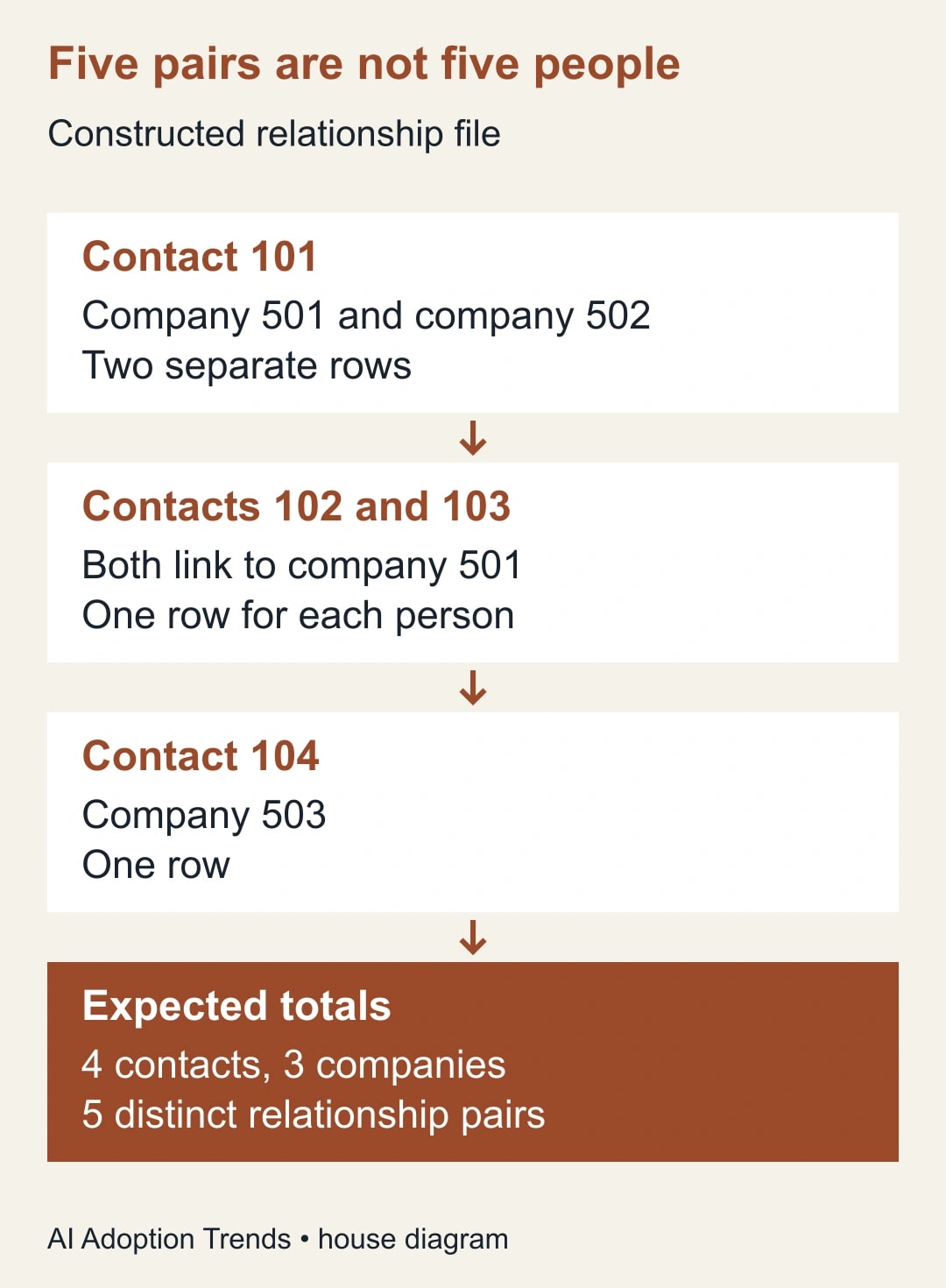
Imagine four existing contacts with illustrative IDs 101, 102, 103 and 104, and three existing companies with IDs 501, 502 and 503. These are invented identifiers for explanation; never paste them into a live account. Contact 101 works with companies 501 and 502. Contacts 102 and 103 belong with company 501. Contact 104 belongs with company 503.
The upload contains five rows: 101–501, 101–502, 102–501, 103–501 and 104–503. That is four distinct contacts, three distinct companies and five distinct relationship pairs. The repeated 101 is deliberate. The repeated 501 is also deliberate because several people relate to that company. Neither repetition, by itself, indicates a duplicate contact or company.
Suppose the working sheet also includes 104–502, but the account owner cannot confirm that relationship. Hold that sixth proposed pair outside the file. The planned outcome remains five approved associations plus one unresolved proposal. Do not import all six and ask the sales team to sort out the result later.
Before proceeding, open the actual records represented by a small sample of the real IDs. Confirm both ends of each relationship and the business reason. For the pilot, include a contact with two intended companies and a company with several intended contacts. A sample containing only one-to-one relationships will not test the part of this workflow that most easily confuses people.
Map the two objects deliberately
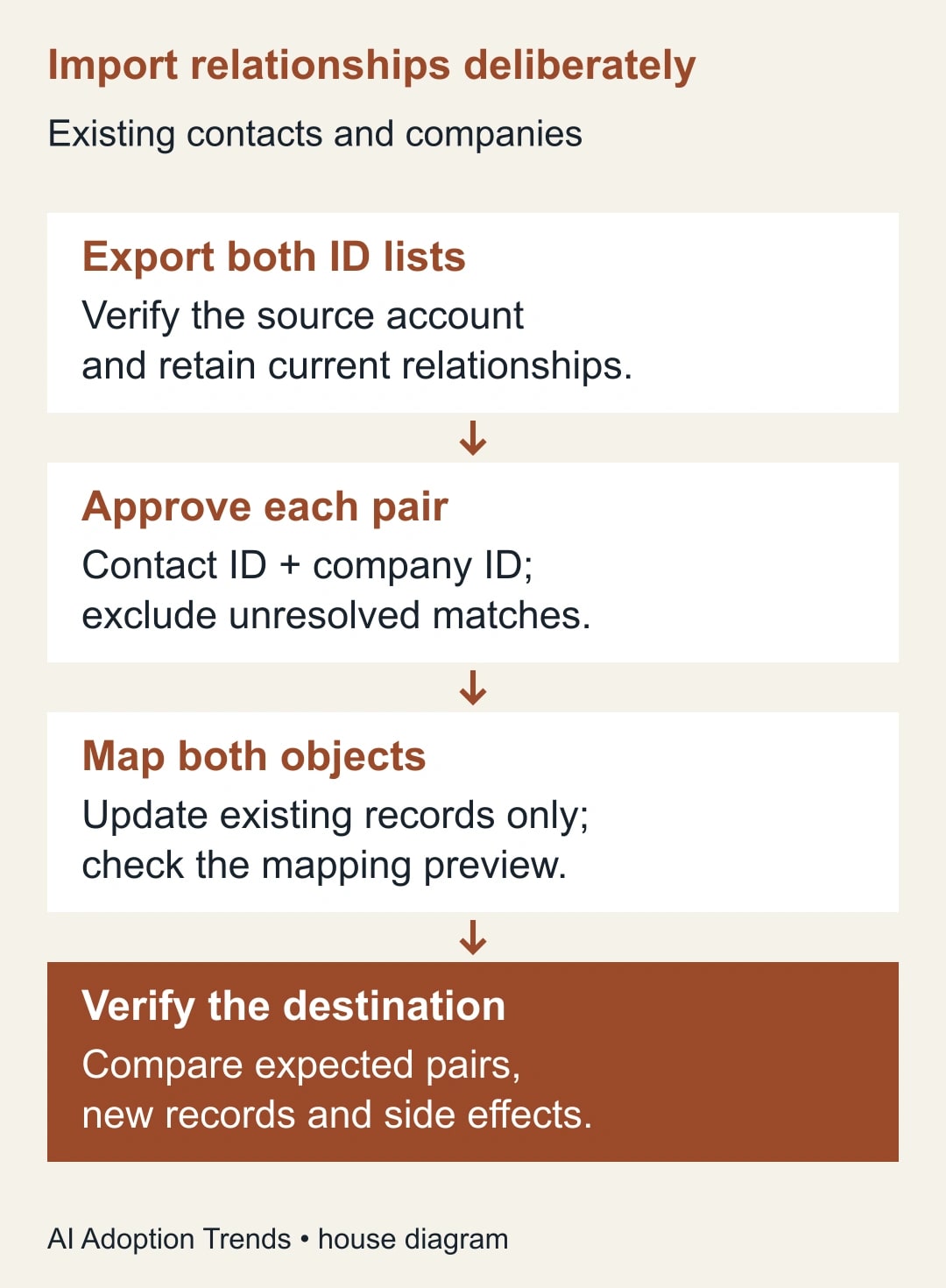
In HubSpot, open the import route from Data Management and Data Integration, or the Import control on an object index page. Choose the advanced multiple-object flow, select contacts and companies, and use a single file for this procedure. For each object, choose Update existing records only. HubSpot's current import documentation describes that mode as ignoring new records, which fits the scope of this repair.
Map Record ID - Contacts to the contact Record ID and Record ID - Companies to the company Record ID. Inspect the mapping preview rather than accepting a guessed mapping because the headers look close. Exclude any working columns that are not intended updates. If the preview indicates record creation or the IDs are mapped to ordinary text fields, stop and correct the setup before submission.
Use a batch name that identifies the purpose and date. Retain the exact uploaded file and the approved pair list. Do not add email or company-domain fields merely because they were present in the reference export. Extra mapped properties can introduce changes beyond the association repair. If those properties need updating, use a separately reviewed file with its own expected outcome.
Review any final options that affect contact status or other behavior. This is a relationship repair, not a request to enroll people in marketing. Have the account owner check the planned batch against the processes identified earlier. An import permission allows a user to operate the tool; it does not establish that every possible effect is appropriate for this business task.
Verify the pairs in the destination
After the pilot completes, review the import summary and download any available error report. Then inspect the actual contact and company records. Compare the set of expected pairs with the set now present. Check both an ordinary one-company contact and the person with two companies. Record any unexpected labels, primary-company changes or new records for investigation.
For the constructed example, the acceptance condition is that the five intended pairs exist on the four existing contacts and three existing companies, without unintended new records or property changes. A result saying five rows processed is not enough. Row processing and correct relationships are different observations, and existing associations may affect how the product summarizes changes.
If an import partially succeeds, determine which pairs are already correct before retrying. HubSpot's import-error guidance distinguishes issues involving identifiers and associations. Read the actual error details and resolve the underlying ID or mapping problem. Do not repeatedly upload the same uncorrected file because the interface allows another attempt.
Check the downstream workflow with a harmless case where possible. Does the company view now show the right people? Does the account report count the intended records? Does a routing rule use the expected company when a contact has more than one? The association may be technically correct while the business process still needs a documented choice about which relationship it should use.
Repair a wrong association without erasing good work
If contact 104 was accidentally linked to company 502, first confirm the before-change state. An incorrect new link and a legitimate older link require different treatment. Correct only the relationship that is wrong, using the account's supported association controls and the appropriate permissions. Verify that the approved 104–503 relationship remains intact afterward.
Do not assume deleting an import will reverse every relationship or property change. Plan recovery around the actual affected records and the saved before-change evidence. If the mistake changed a primary company or label, restore that separately and check the downstream view again. Keep a concise correction record so another administrator does not later reintroduce the bad pair from an old spreadsheet.
Pause a larger rollout if the pilot creates unexpected records, alters unrelated properties or triggers an unintended workflow. Repair and repeat the small test before expanding. If the account's behavior or available controls differ from the documented route, investigate that difference with the administrator rather than changing the scope of the import midstream.
Keep a reusable release worksheet
- Purpose: identify the business process that needs the relationship.
- Source: record the HubSpot account, export date and identifier columns.
- Pair list: count distinct contacts, companies and approved relationships separately.
- Exceptions: list ambiguous or missing IDs outside the upload with a named owner.
- Mapping: verify both objects, both Record ID fields and existing-record-only modes.
- Dependencies: check labels, primary-company meaning, routing and contact-status options.
- Evidence: retain the before state, uploaded file, import result and destination checks.
- Recovery: name the person who can remove a wrong link and restore affected settings.
For a small batch, the verification effort may be larger than the upload effort. That is appropriate: the value comes from correct account relationships. In a constructed planning example, manually checking and linking 40 approved pairs at three minutes each takes 120 minutes. Preparing a reviewed file takes 35 minutes, the import and error review 15, and destination verification 40, totaling 90 minutes. The 30-minute difference is possible released capacity under those assumptions, not measured savings or a reduction in payroll.
Track unresolved pairs, wrong links found after release and time spent repairing the batch. A faster upload with more downstream corrections is not an improvement. Start with a small approved pair list and prove the expected destination relationships. For a separate contact-property cleanup, use the guide to update existing HubSpot contacts with Record IDs; keep that change distinct from the relationship repair you are completing here.
Weekly Newsletter
AI Adoption Weekly
New research, field guides, training studies, and tool decisions for operators.
No spam. Unsubscribe anytime.
Related Comparisons
Calculator
AI seat cost calculator
List price × headcount. You enter the hours and the operating assumptions.