
Preview Encrypted PDFs in Google Drive Without Extra Downloads
Test Drive’s new preview for client-side encrypted PDFs and images. Check access, file coverage and review quality before changing the team workflow.
Published October 19, 2026

If your team already uses Google Workspace client-side encryption, test the new Drive preview before downloading every protected PDF or image. A readable browser preview may remove an unnecessary local copy. It does not change who may review the file, what counts as approval, or whether the document is complete enough to support a decision.
This is a guide for operations leads who receive protected documents: supplier evidence, project records or other material already governed by their organization's file-handling rules. The immediate job is to establish a reliable viewing route for authorized reviewers, then decide which downloads are still necessary.
It is not a recommendation to adopt a new encryption system just to gain a preview. Teams without client-side encryption have a different setup decision. Teams that need specialized document analysis, annotations or an offline workflow should test those requirements separately before changing their established process.
What the October 15 release changes
Google's October 15 release notice announces browser previews for client-side encrypted PDFs and images in Drive. Previously, viewing these non-native encrypted files required a download. The release is enabled by default, with an extended rollout that can take longer than 15 days.
The notice lists Enterprise Plus, Education Standard and Plus, Frontline Plus, and Assured Controls or Assured Controls Plus availability. Confirm your organization's entitlement rather than assuming that any paid Workspace account qualifies. The launch concerns PDFs and images in Drive; it is not a general promise of preview support for every encrypted format.
Client-side encryption means the organization controls an additional encryption layer before content reaches Google's storage. Google's encrypted-file help explains that Google cannot decrypt this content and that users may need additional identity verification. The same page says native encrypted Docs, Sheets and Slides do not have previews and encrypted files do not support Drive comments. Do not design a review process around those absent capabilities.
Those are provider-documented features and limits, checked October 17, 2026. The acceptance test below is our proposed operating method. We have not measured preview performance across organizations, file sizes or browsers, and the launch notice does not establish that every document-review job can now stay entirely inside Drive.
Start with the review decision, not the download count
Name the decision each reviewer must make. “Confirm that the supplier certificate covers the required dates” is specific enough to test. “Look at the file” is not. A preview that opens successfully but hides a crucial detail has not completed the business job.
Next, name the approved source version. Record a file link, owner, version or issued date, and the expected number of pages or images where known. If two versions have similar names, resolve which one governs before testing the new viewing route. A clear image of the wrong document remains a failed review.
Choose the review owner and a technical contact. The review owner decides whether the evidence answers the business question. The technical contact resolves account, identity or rendering problems. Neither should silently change the other's acceptance standard to get the test marked complete.
Budget the existing license and encryption administration separately from the new routine. Preview may require no new purchase for an already eligible team, but testing, support and exception handling still consume time. Get actual subscription costs from your administrator if eligibility requires a plan change; this article does not assume an upgrade price or recommend one.
Build a small file-and-reviewer test set
Select a handful of approved files that resemble ordinary work. Include a clear multipage PDF, a scanned PDF, an image with small but important text, and a file recently replaced by a newer version. Use material the chosen reviewers are already authorized to see. A technical test is not a reason to broaden the audience.
Have at least two intended reviewers test their own normal accounts. An administrator opening a file successfully does not establish that a colleague can do the same. If the workflow includes external recipients, treat their identity and access route as a separate test rather than assuming the internal result applies.
For every file, define one or two facts the reviewer must locate. Examples include an issue date on page two or a drawing revision marker in an image corner. Record the expected answers in a restricted test worksheet before the session. This gives you an independent check on usefulness rather than a collection of “opened fine” comments.
Avoid a test set consisting only of small, clean documents. A rotated scan or faint signature block can expose the point where a preview no longer supports the task. Include representative difficulty without using unnecessarily sensitive material simply to make the test feel realistic.
Walk through the authorized viewing route
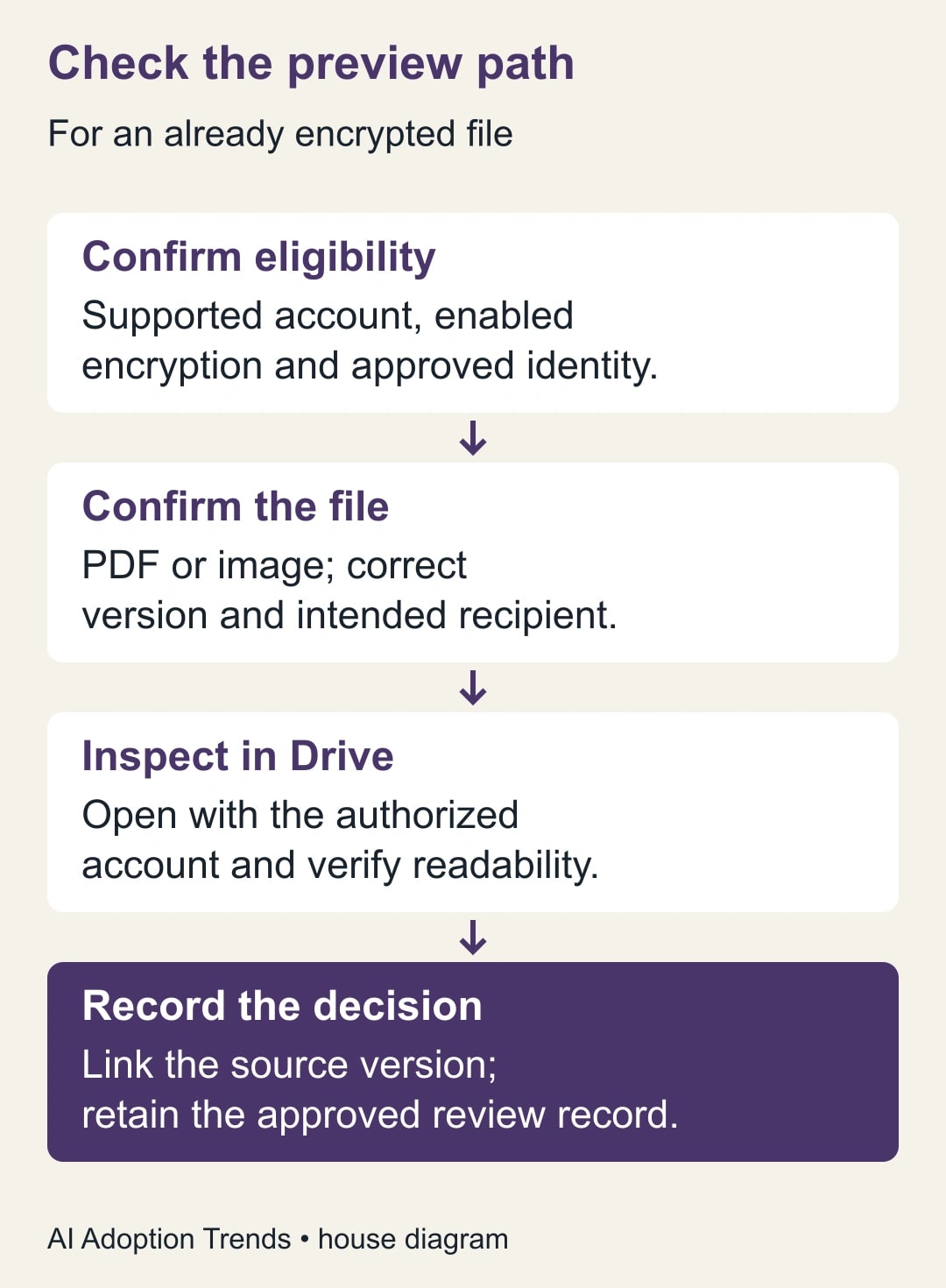
Begin in Drive using the account that should receive the document. Confirm the file's identity and encryption indication, then open it through the available preview path. Complete the organization's normal identity verification when prompted. Record whether the expected preview appears and whether every required page or image can be inspected.
Do not infer a specific authentication failure from a generic loading error. Capture the visible error, time, file type and account context for the technical contact. Exclude document contents and credentials from routine support notes unless an approved support process specifically needs them.
The reviewer then answers the predetermined business questions. Check the smallest consequential detail, not just the first page. If a certificate has four pages, confirm that the relevant appendix is present. If a drawing contains a revision marker, compare that marker with the expected version in the worksheet.
Record the outcome in the team's existing approved review system, linking to the source file and identifying the version reviewed. The new preview does not create a new approval record by itself. If your process depends on comments, markup or a signature, use the established supported route for that action.
Keep the pilot worksheet short enough to use
Create one row per file and reviewer. The following fields are a proposed worksheet, not a Drive feature. They let a team distinguish access failures from files that open but do not support the intended review.
- Source: File link, owner, format, version or issued date, and expected page count when known.
- Reviewer: Intended account and business role, without recording authentication secrets.
- Viewing result: Opened, blocked, unreadable detail, incomplete content, or unsupported task.
- Business check: Required fact, observed answer, and whether it agrees with the reference.
- Disposition: Review complete, approved alternative required, or unresolved with an owner and due time.
- Copy handling: Whether a download was needed, why, and which existing storage and retention rule applies.
Keep “opened” and “review complete” in separate fields. This is the most important design choice in the worksheet. It allows a technically successful feature to be assessed honestly against the business work it was supposed to support.
When a document changes, the earlier review remains evidence about the earlier version. Decide whether the change requires a fresh review and record that decision. A live file link is helpful for navigation, but it should not erase the identity of the version on which an approval was based.
Worked example: 80% preview coverage, 70% completed reviews
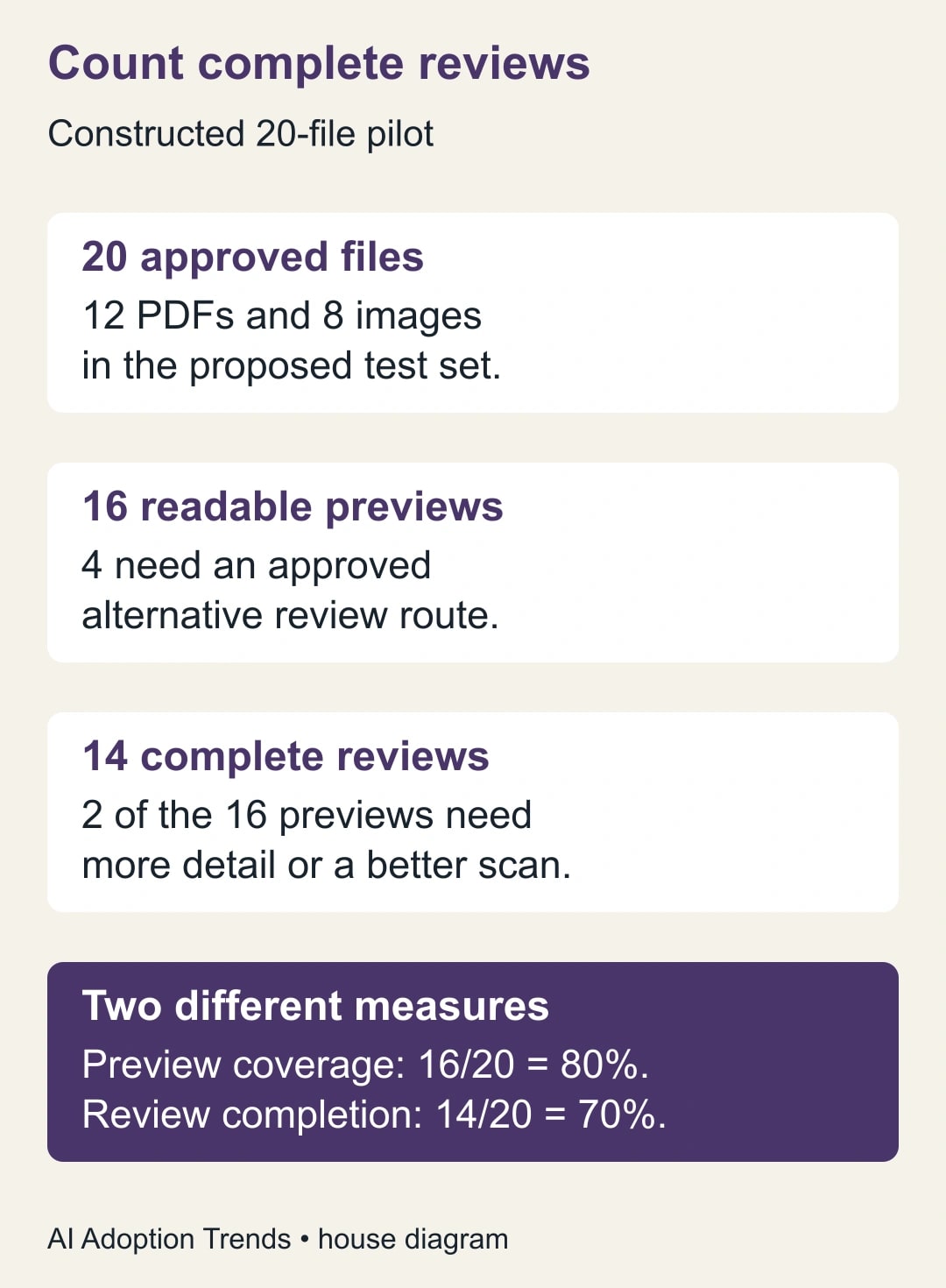
Consider a constructed pilot containing 20 approved files: 12 PDFs and eight images. Sixteen files can be previewed clearly enough to begin review. Four require an approved alternative because the preview route is unavailable or unsuitable for the task. Preview coverage is 16 divided by 20, or 80%.
Of the sixteen, two still cannot support a completed decision. One scan lacks a readable expiry date and one image needs a higher-quality original. Fourteen of the twenty reviews are complete, so overall completion through the preview route is 70%. Calling the pilot “80% complete” would confuse a viewing result with a work result.
The owner assigns the four viewing exceptions to the technical contact or the approved alternative route. The two inadequate-source exceptions go to the document owner for better evidence. These are different problems and should not sit in one undifferentiated support queue.
Suppose the previous workflow downloaded all twenty files and the pilot needs six approved downloads for these exceptions. That is fourteen fewer downloads in this constructed batch. It does not establish fourteen avoided incidents or a measured reduction in breach probability. Count the operational change you observed without attaching an unsupported risk percentage.
Recover without weakening the protection
If the preview is missing, first check whether the feature has reached the account and whether the file is a supported PDF or image. During an extended rollout, waiting may be the correct technical answer. Keep the approved existing workflow available so reviewers do not improvise a workaround under deadline pressure.
If access fails, verify the intended identity and file permission with the responsible administrator. Do not decrypt the file, change sharing to a broad audience or forward it to a personal account just to make a preview work. Those actions change the information boundary rather than repairing the viewing route.
If the file opens but a necessary detail is unreadable, ask for an adequate original or use the authorized alternative viewer. Mark the business review incomplete until the evidence can actually be checked. A confident reviewer cannot compensate for a date or amount that cannot be read.
If the job requires features outside this preview, preserve that exception. For example, a team may still need an approved specialist application to inspect a technical drawing. Reducing downloads is useful only when the replacement route supports the required work.
Browser viewing also does not make visible information immune to capture. Google's encrypted-file help notes that people viewing the screen and sufficiently privileged extensions can still access content. Apply the organization's existing device and viewing rules. The useful change here is fewer unnecessary file copies, not an absolute promise about what happens after a person can see the document.
Decide whether the routine earns a wider rollout
Compare the old and proposed workflows using the same kinds of files and review questions. Record total time, including sign-in, locating the correct version, reading, recording the decision and resolving exceptions. A fast first preview can be outweighed by repeated identity or document-quality problems.
For a constructed cost comparison, assume twenty reviews previously took six minutes each, or 120 minutes. In the proposed workflow, fourteen complete reviews take four minutes each and six exceptions take ten minutes each. Total work is 56 + 60 = 116 minutes. The four-minute difference is small; it would not justify claiming a major productivity gain.
The team may still prefer the new routine because fewer local copies are needed and source links are easier to maintain. State that as an operating preference supported by the observed workflow, not as cash savings. Released time becomes a cash result only when spending actually changes.
Before expanding, require every required review to have a recorded outcome and every exception to have an owner. Stop expansion if reviewers mark unreadable or incomplete documents as approved, if the version being reviewed cannot be identified, or if the workaround starts broadening access. Fix those problems before adding volume.
Change one team's default, with an exception route
The first useful decision is modest: for this team and these supported files, try preview first and download only when the approved review requires it. Keep the exception route visible and review the pilot worksheet after a normal cycle of work.
If the larger problem is deciding what company information another tool may access, use our questions to ask before connecting business data. For this launch, success is simpler: the right person reads the right version, reaches a defensible decision and avoids an unnecessary copy along the way.
Weekly Newsletter
AI Adoption Weekly
New research, field guides, training studies, and tool decisions for operators.
No spam. Unsubscribe anytime.
Related Comparisons
Calculator
AI seat cost calculator
List price × headcount. You enter the hours and the operating assumptions.