
HubSpot Lifecycle Stage Import Won’t Move Backward: A Safe Repair
Correct a wrongly advanced HubSpot lifecycle stage with a reviewed clear-and-import process, while protecting customer history and automations.
Published November 25, 2026

If a HubSpot import will not move Lifecycle stage backward, first confirm that you are correcting an erroneous stage. For approved backward corrections, clear the existing lifecycle value before importing the earlier one. Do this for a narrowly identified group, after preserving the original values and checking the automations that react to stage changes.
Do not clear every Customer record merely because a customer has stopped buying. A historical customer, an inactive account and a wrongly classified lead are different business situations. The repair should restore the meaning of the data, not make a dashboard's funnel look tidier.
HubSpot's documentation, checked November 25, says imports can move lifecycle stages forward; an earlier stage requires clearing the existing value first. Its bulk-update guide also specifies a unique identifier and a Lifecycle stage column using the accepted stage value. HubSpot's instructions for updating lifecycle stages in bulk explain that import behavior.
This guide is for a revenue operations owner correcting existing contacts or companies in a customer relationship management system, or CRM. Skip this procedure if the real issue is an incorrect deal stage, a sales follow-up status, or a renewal process. Identify the right property before modifying records.
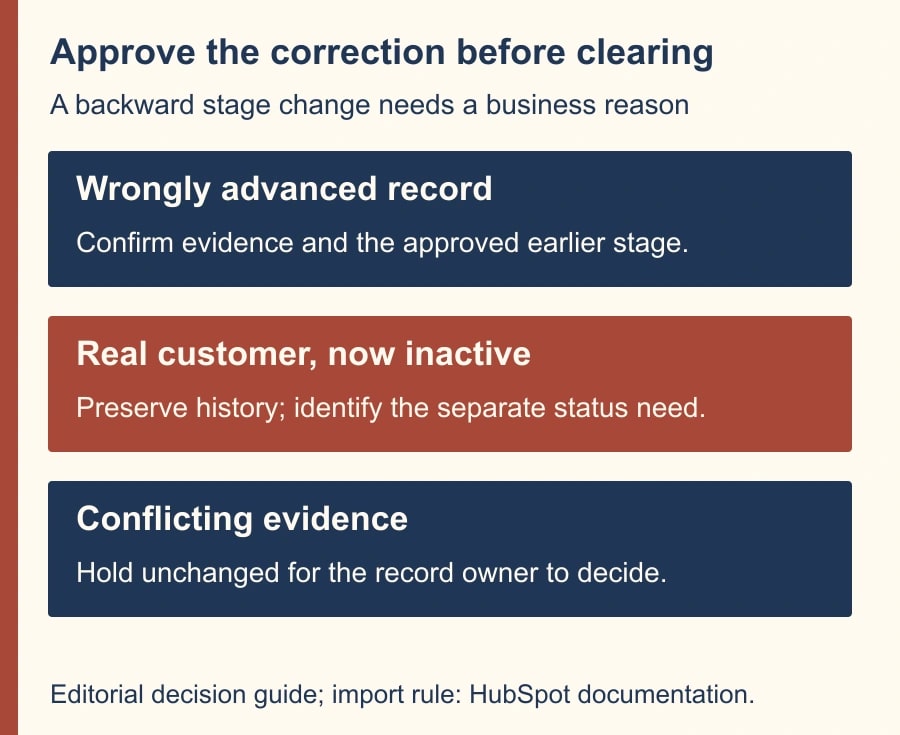
Decide whether moving backward is the right repair
Start with the incident that caused the question. Perhaps a migration classified webinar attendees as customers, or an integration advanced records after a test deal was created. Write down the observed mistake, the intended meaning, and the evidence supporting the correction.
Ask the sales or customer owner to confirm any record with real transaction history. A customer who has no current opportunity may still correctly be a customer. If the business needs to track renewal readiness, inactivity or requalification, use an appropriate separate field or process rather than erasing the lifecycle distinction.
Lifecycle stage and Lead Status also serve different purposes. HubSpot describes Lead Status as additional sales-qualified-lead status detail. Its documentation identifies several automatic sources of lifecycle updates and provides property history for inspecting changes. Review HubSpot's lifecycle-stage definitions and update rules before deciding that an import failure is a defect.
The output of this step should be an approved correction list, not a broad segment such as “all records created last month.” Dates can help find candidates, but they do not establish that every candidate is wrong. Preserve a separate list of cases requiring judgment.
Find what set the value and what could set it again
Inspect the property history for representative records. Identify whether the change came from an import, an integration, a workflow, a manual action, or an association-based setting. A backward import may succeed briefly and then appear to fail when the original source advances the record again.
Check both the source of the bad update and the processes triggered by a corrected value. The first determines whether the repair will persist. The second determines whether the repair will accidentally send messages, assign tasks or change reporting while records are temporarily blank.
Do not disable unrelated automations across the entire account. Work with their owners to narrow any pause or exclusion to the approved correction group. Record what was paused, who approved it, and how it will be restored. If you cannot prevent consequential customer actions during the repair, stop and resolve that dependency first.
For workflows that branch on a field, inspect the conditions and their timing. A stage correction can expose a pre-existing branch problem rather than create one. Our guide to HubSpot workflow branch order and evaluation time addresses that separate diagnostic step.
Preserve more than the current stage label
Export or otherwise retain an approved record of the relevant identifiers, original lifecycle values, proposed values, owners and correction reasons. Include the report snapshot needed to explain any before-and-after movement. Store the record in the organization's approved location with access limited to the people performing and reviewing the change.
Do not describe the export as a complete rollback of all history. HubSpot distinguishes legacy lifecycle date properties from newer calculated properties when stages move backward; their behavior differs. Check the documented behavior and the reports that depend on those properties before changing production data. HubSpot's lifecycle history notes are especially important for funnel and time-in-stage reporting.
A useful correction record separates the old value from the reason it was wrong. “Customer to Lead” explains the edit; “test import assigned Customer to an unqualified contact with no approved customer evidence” explains why a reviewer should accept it. That distinction helps future analysts interpret a change they did not witness.
For the import itself, use the correct existing-record identifier and only the intended fields. Avoid adding unrelated columns simply because they were present in the export. Our guide to updating existing HubSpot contacts with Record ID covers matching records without creating a competing copy.
Worked example: twelve candidates, eight corrections
Consider a constructed team investigating twelve contacts advanced to Customer during a test migration. The initial assumption is that all twelve should move back to Lead. The sales owner reviews them before anyone clears the property.
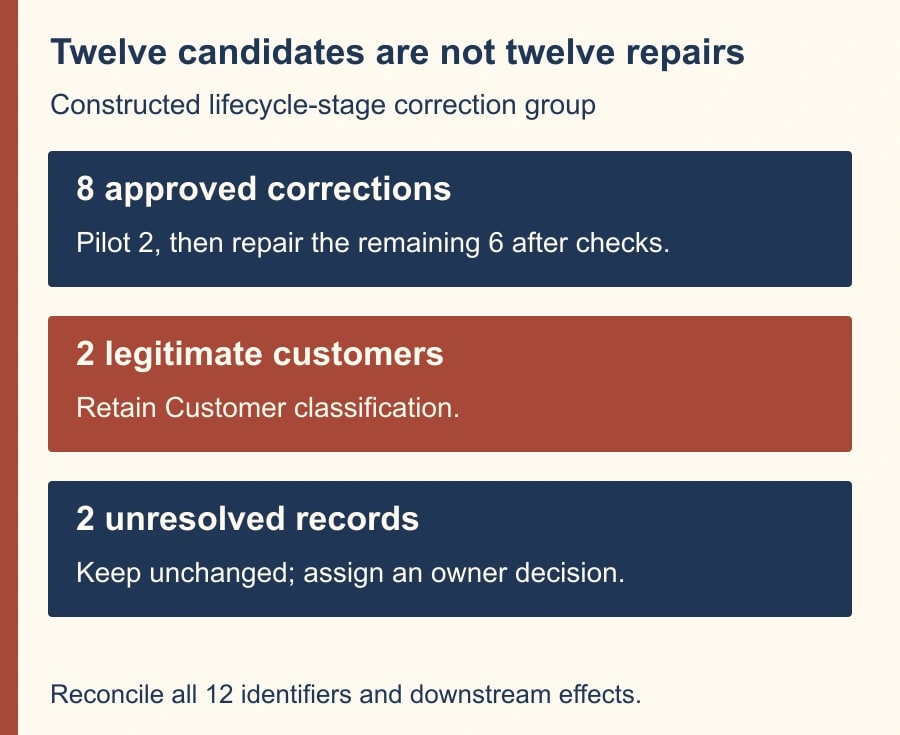
Eight have no customer history and were advanced solely by the mistaken import. Two have legitimate closed business and should remain Customer. Two have conflicting evidence and need an owner decision. The approved repair group is eight records, not twelve. The unresolved group remains visible and unchanged.
The operator chooses two of the eight as a pilot. For each, the reviewer confirms the identifier, original Customer value, approved Lead destination and absence of a process that would immediately advance it again. The operator clears the stage through the supported record-editing interface, verifies the blank value, and imports the approved earlier stage for those two identifiers.
After the pilot passes, the remaining six approved records follow the same controlled process. The expected result across the original candidate group is eight corrected Leads, two retained Customers, and two unresolved records whose original classification has been preserved pending review. All twelve identifiers must still be present exactly once in the reconciliation.
This example demonstrates scope control, not a promise about your account's history or workflows. The team's acceptance criterion is eight approved corrections with no unintended record or customer action. The number of candidates investigated is a separate measure and should not inflate the correction count.
Perform the clear and set as two verified steps
Use the supported interface or an appropriately entitled workflow to clear the approved records. Do not assume that an empty cell in a CSV file will reliably perform the clearing step you need. The important checkpoint is the actual current value in HubSpot before the backward import begins.
Keep the interval between clearing and setting controlled. The operator should have the approved import file and the reviewer available before starting. A blank lifecycle value can affect views and processes even when it is intended to last only briefly.
Run the import on the pilot identifiers and inspect the result in the records themselves. A completed import job is not sufficient evidence that every intended property changed. Compare each identifier, target value and error outcome. Recheck after the relevant integration or automation has had a chance to run.
If the value moves forward again, stop the remaining batch. Inspect the new property-history entry to identify the source. Repeating the clear-and-import cycle without addressing that source can generate confusing history and repeated downstream actions.
If the pilot succeeds, apply the same process to a manageable group of the remaining records. The right batch size depends on how quickly your team can reconcile results and recover from a mistake. There is no universal safe count that replaces knowing the account's automations and business consequences.
A correction worksheet you can reuse
- Record identifier and object: contact or company, with the exact existing-record match.
- Current and approved stage: preserve the original value and destination separately.
- Business reason: why the current value is incorrect, with supporting evidence.
- Decision owner: the person who confirms the classification.
- Update source: the import, integration, setting or workflow responsible for the original change.
- Downstream effects: messages, tasks, assignments and reports that need checking.
- Execution evidence: clear confirmed, target import completed, final value inspected.
- Recheck and outcome: stable after the relevant automation cycle, unresolved, or recovery required.
Use one row per record for the execution evidence even when several share the same incident reason. That makes partial success visible. “Batch complete” can conceal two failed records among many correct ones; a row-level outcome lets the next operator resume only what remains.
Protect the reports that explain sales performance
Before the repair, save the relevant funnel view and identify its date logic. Does it count current stages, first entry, most recent entry, or time spent in a stage? A current-property correction and a historical performance report may answer different questions.
After the repair, explain any expected movement to the report owner. A fall in Customer count caused by removing test records should not be interpreted as customer churn. Likewise, moving a record back to Lead does not prove a new lead was acquired that day. Keep the correction event separate from business activity in the management explanation.
If a report uses a property whose historical behavior is uncertain, hold that report's conclusion until the owner verifies it. Re-importing the old label may restore a current classification without reconstructing every calculated date or prior automation effect. Treat recovery as a reconciliation task, not merely a reversal of the last spreadsheet.
The cost of a small correction is usually operator and reviewer time within an existing setup. Workflow-based methods can depend on subscription entitlements; the manual route may be more appropriate for a small, carefully reviewed group. Verify access before choosing the method, and do not buy a plan solely because a bulk workflow sounds convenient.
Close the incident only after the source is fixed
The incident owner should reconcile candidates, approved corrections, completed corrections and unresolved cases. In the constructed example, twelve candidates do not become twelve successes. Report eight verified corrections, two correctly retained customers and two pending decisions.
Restore any narrowly paused process with its owner, then watch the next relevant update cycle. Check that the corrected records stay correct and that no unintended messages or tasks were produced. Keep the correction file and evidence with the incident record so a later question can be answered without guessing.
Stop further changes if identifiers do not match, the business meaning is disputed, the stage keeps advancing again, or the team cannot explain the effect on customer communications. Those are reasons to repair the process before expanding the batch, not reasons to force the import through.
Begin with one record whose history clearly shows the mistake. Confirm its intended classification with the owner, identify the source that set it, and prove the two-step repair on a small pilot. That gives you a repeatable correction without turning a simple property rule into a larger data-quality incident.
Weekly Newsletter
AI Adoption Weekly
New research, field guides, training studies, and tool decisions for operators.
No spam. Unsubscribe anytime.
Related Comparisons
Calculator
AI seat cost calculator
List price × headcount. You enter the hours and the operating assumptions.